S100 Computers

Home S-100 Cards History My System Software Cards For Sale
Forum Other Web Sites Quiz Index    
  
An IDE drive Interface Board

History of the IDE Interface.
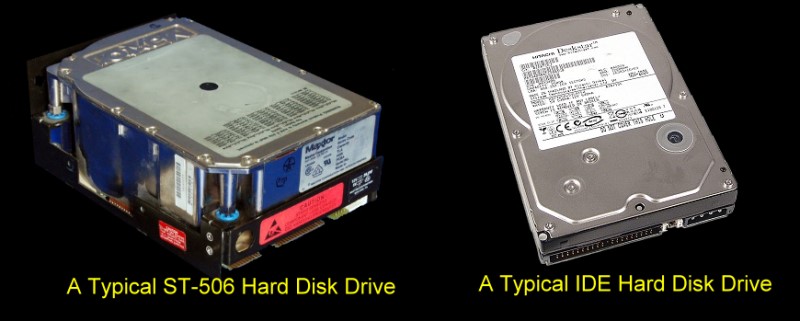
Most later S-100 users have some kind of hard disk system to store and retrieve data.  In the early 1980's the so called "Winchester"  ST-506 drives were by far the most commonly used drives.

The ST-506 was the first 5.25 inch hard disk drive. Introduced in 1980 by Seagate Technology (then Shugart Technology), it stored up to 5 megabytes after formatting. With the ST-506 interface, the drive was connected to a controller card with two cables and power. The drives were "dumb",  because the control card had to translate requests for a particular track and sector from the host system into a sequence of head positioning commands, then read the signal from the drive head and recovered the data from it. 

A number of other companies quickly introduced drives using the same connectors and signals, creating a ST-506-based hard drive standard. IBM chose to use it, acquiring adapter cards for the PC/XT from Xebec and for the PC/AT, from Western Digital. As a consequence of IBM's endorsement, most of the drives in the 1980s were ST-506-based. However the complexity of the controller and cabling soon led to newer solutions like SCSI, and later, IDE.
 
 IDE & ST-%)^ drives

The IDE drive interface itself has a long history of incremental technical drive interface developments over the years. IDE evolved initially from Western Digitals hard drive interface used in the above  IBM-AT.  The central idea of the IDE interface was to place the drive controller, data separator etc. on the drive itself. This was a major improvement over the earlier ST-506 interfaces.  It allowed for more drive construction possibilities, better standardization, better reliability and a more flexible connection to the computer itself.  There were a number of improvements and name changes occurred over the years such as ATA/ATAPI.  After the market introduction of Serial ATA in 2003, IDE/ATA interfaces were retroactively renamed Parallel ATA.  I shall still use the term IDE here.

There are now actually two types of IDE connectors the "standard' 40 pin connector found on all IBM-PC type motherboards  and a newer 44 pin connector used mainly in laptops for small laptop drives. The extra 4 pins are used to bring power (+5V) to the drive.  Here is a picture of a standard IDE connector:-

IDE Connector


Introducing a Prototype S-100 Board to Interface with IDE Drives.
In the early 80's I too, used an ST506 hard disk drive. My initial drive was a Shugart 5Mg drive. Later I moved to a larger drive with both CPM and DOS partitions. The S-100 controller board I use is the Xcomp dual S-100 boards.  I will write-up a description of this board and describe the software at a later stage.

Here I wish to describe a S-100 prototype board I constructed that allows one to interface the S-100 bus with a standard IDE drive interface.  This increases tremendously the range of drives you can use to run CPM, CPM86 and MS-DOS with on the S-100 bus.  Since the typical capacity of a CPM system is up to 8MG capacity, almost any old IDE drive is suitable.

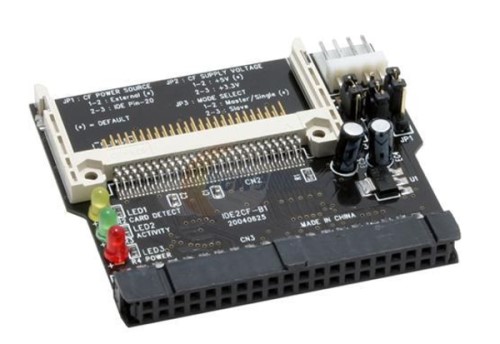
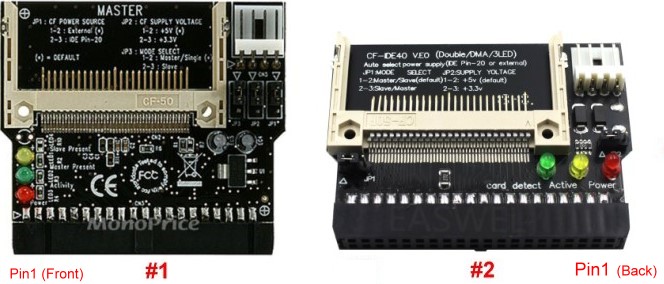
Of particular usefulness is the ability to use IDE to Compact Card Flash memory cards with this board.  This allows you to have a modern solid state drive on your S-100 system booting CPM silently and almost instantly. Here is the actual pinouts of a CF drive.  There are many "IDE adaptors" available for a few $ that allow you to read and write to a CF card over an IDE connection. We will use them here.

The basic concept is to interface to the IDE drive(s) using a simple 8255 parallel IO chip.   This was one of the workhorse parallel port LSI chips of the 70's. It contains 3 parallel ports which can be input, output, or bi-directional. The chip takes up only four I/O ports, one for control, three for the data.   Programming the 3255 is a little tricky because it is an extremely powerful chip.  There are many articles in the literature describing how to do this. The best is a book by Paul F. Goldsbrough "Microcomputing Interfacing with the 8255 PPI Chip", Howard Sams, 1979. 

There was a pivotal article for interfacing an IDE drive written by Peter Fassee in 1998 where he interfaced an IDE drive using a 8255 with a 63B03 CPU. It can be seen here.  This was further elaborated upon by a number of others over the years to work with other CPU's, for example an 8051 CPU, see here, (Both articles can be located on the great web site for such things at www.pjrc.com).  However I have not seen a layout for the S-100 bus with a Z80 CPU.  That is what we have here. 

What is most striking about the IDE interface when we compare it to the ST506 interface is how simple the software and hardware is. With the exception of the actual sector read and write commands of raw data, all commands are 8 bits. You simply setup the drive controller for a particular head, track and sector number. Then pulse a read or write signal and the drive delivers 512 bytes of data.  For the real die hard's, the IDE specs can be seen here.  The only complication is as Peter Fassee pointed out the switching of I/O modes in the 8255. In order to prevent glitching of signals, some lines on port C of the 8255 need to be inverted. See the above articles for more information.

The prototype board layout was fairly straightforward and can be seen here.  Since there is plenty of room on the board I like to use plenty of diagnostic LED's to see what is going on.  A full IEEE-696 addressing scheme of 24 address lines and full 16 bit (or just 8 bit) port addressing will be added to the final board (see below). 

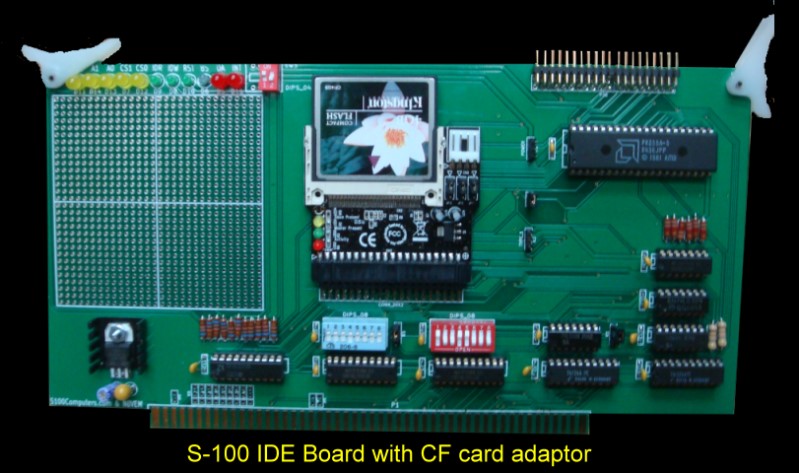
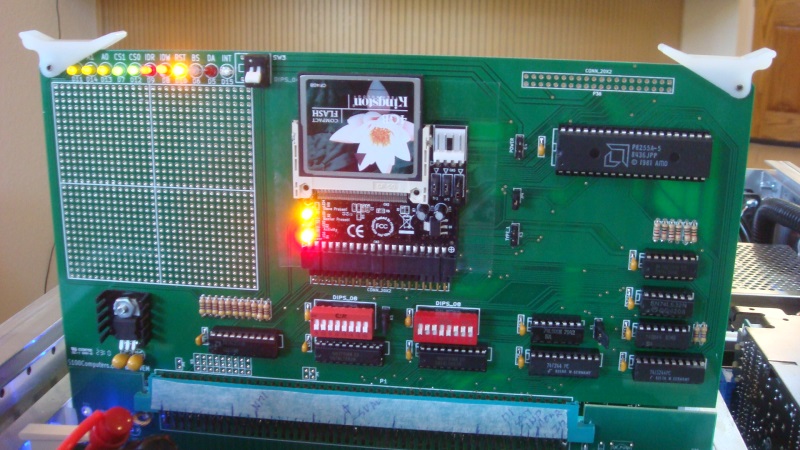
Here is a picture of the prototype board:-

IDE 8255 Prototype Card

This was my test system to debug the software. It used only 8 bit IO address decoding.  The board has a standard IDE 40 pin connector at the top right hand side to hook-up to an IDE hard disk via a standard drive cable. Also on the board is connection to an IDE to CF flash card "adaptor".  Today these "adaptors" are numerous, some costing as little as $8. I soldered the above card directly to the board using the adaptor cards protruding pins at the back of the CF IDE socket.  Other cards have a male IDE pins that can attach to the board IDE pins if they are right angled.  The LED readout in the above diagram is such that when everything is functioning normally they should all be lit (for the master drive).
 

Diagnostic Software
The board can be tested with a short diagnostic program (MYIDE.ASM) I wrote which can be seen here
The MYIDE.ASM file can be downloaded here:- MyIDE.zip

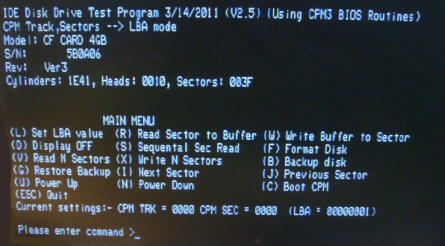
Here is how the program looks when it first comes up. 

MYIDE Signon

First a few comments on the code. 

You must set the equates for the 4 ports of the 8255 LSI I/O chip. They must be contagious. I use ports 30H-33H.  Next you need to set the MAXSEC equate to the maximum number of sectors/track for your drive. This is typically written on the drive label itself.  Since CPM systems will typically only utilize a fraction of a modern IDE drive if in doubt use a low number of sectors/track. 
 
The next issue is how are you going to communicate with the keyboard/CRT/LCD display.  If the equate for CPM=TRUE, communications will be via standard CPM/BDOS calls.  However in cases where you do not yet have CPM up and running, if the CPM equate is set to FALSE, output will go to directly your consol ports. These need to be set to their correct values. The code is very simple and straightforward. Its menu driven. 

The program on starting reads the disk parameters and displays them. It then presents a short list of menu items.
 
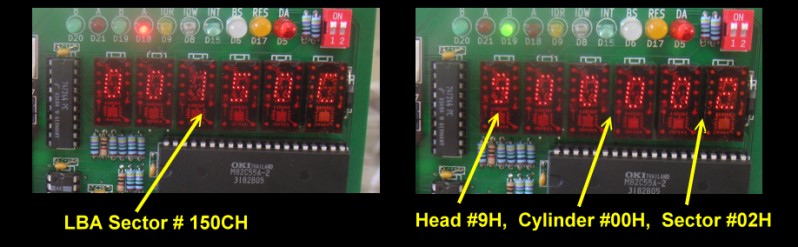
Only the (L)BA menu item perhaps needs explaining.  In the early days of IDE drives, sectors were defined in terms of tracks, sectors and heads. Sectors were a 16 bit number, tracks were a 32 bit number, and heads were a 4 bit number.  This lead to incompatibility amongst drives with different numbers of sectors/track, or heads /drive. Software "drivers" had to be tailored to each drive.   The MYIDE program can easily be modified to talk to the disk in this format. However these drives are really no longer used.  Instead a "Logical Block Addressing" or LBA mode was developed.  Here we address all sectors on the drive as 0 to the maximum number of sectors on the drive as one 24 bit number.  We let the drive electronics figure out the actual track, sector and head.  Unfortunately as we shall see later CPM still thinks in terms of tracks and sectors. So we must convert our CPM type sector/track request to a LBA sector request for the drive. 
 
With the
"L" command you enter a two hex digit sector number, a 2 digit hex high track number and then a 2 digit Hex low track number (tracks are 16 bits).For example 00,00,02 would give the first sector on track 2 (in CPM terminology) of the drive.  The actual LBA number for my drive turns out to be 0000201H.You then hit "R" to read that sector. Then "H" will display the sector contents  read (to 2000H in RAM) in hex.  The "S" command will sequentially read one sector after the next continuously over the whole disk. A good way to be sure your hardware is sound. 
 
The
"W" command writes 512 bytes of whatever is in RAM at 2000H to a specified sector. Use with care!  The "D" stops the drive spinning, the "U" command starts it up again. The "F" command formats each sector with "E5's".  This is necessary to have an empty directory the first time you use the disk with CPM.   MS-DOS/Windows does not do this the same way. Finally while you probably could write a format program to format these drives. I find it easier to pop them into a PC, Format them under windows in FAT32 mode and use them directly in my system.  To avoid CPM's directory getting confused, I have a sector write command that writes 0E5's in sectors  under the (F)ormat command in MYIDE.COM . You only need the first few tracks of course. To be on the safe side I always erase *.* with a new drive with CP/M anyway.  The above of course is a one time only event. After that the drive can be treated like any other CPM drive.  I have not used this board with MS DOS yet.


A Production Board
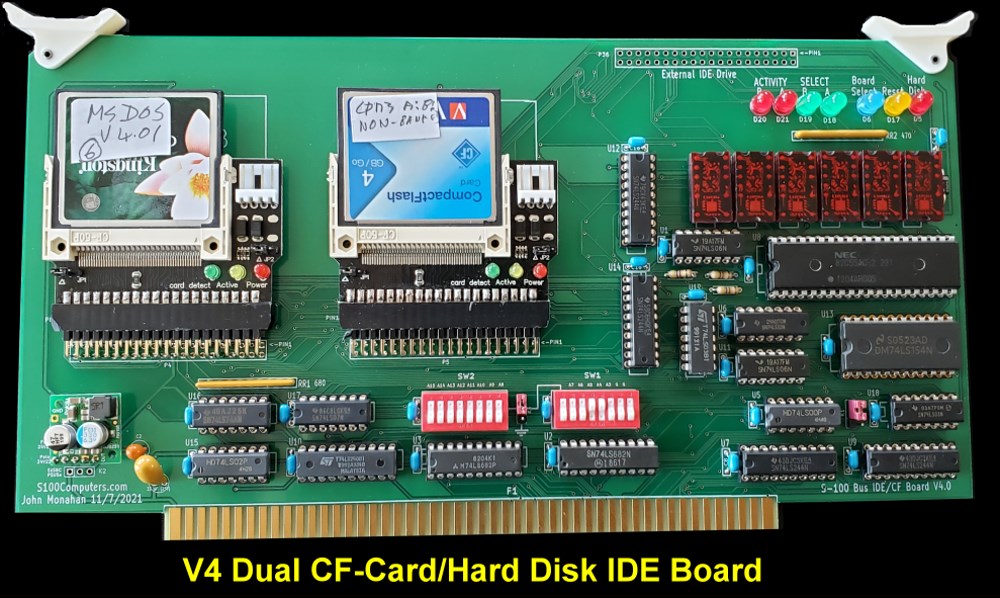
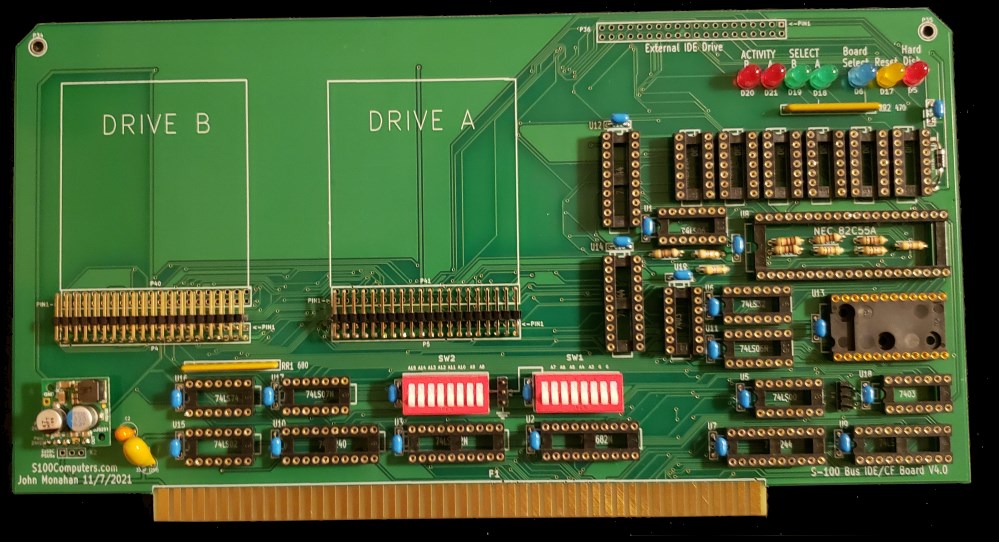
Because this board and software may be of use to others and because I would like to have a "real" board rather than the above prototype in my system, together with Andrew Lynch at N8VEM (see here) we made a "proper" commercial type S-100 board.  Through Andrew's magic hands (and hard work) a very nice S-100 board has emerged.  Shown below. The board uses 24 bit address lines and 16 or 8 bit IO ports.
   
IDE Board Final

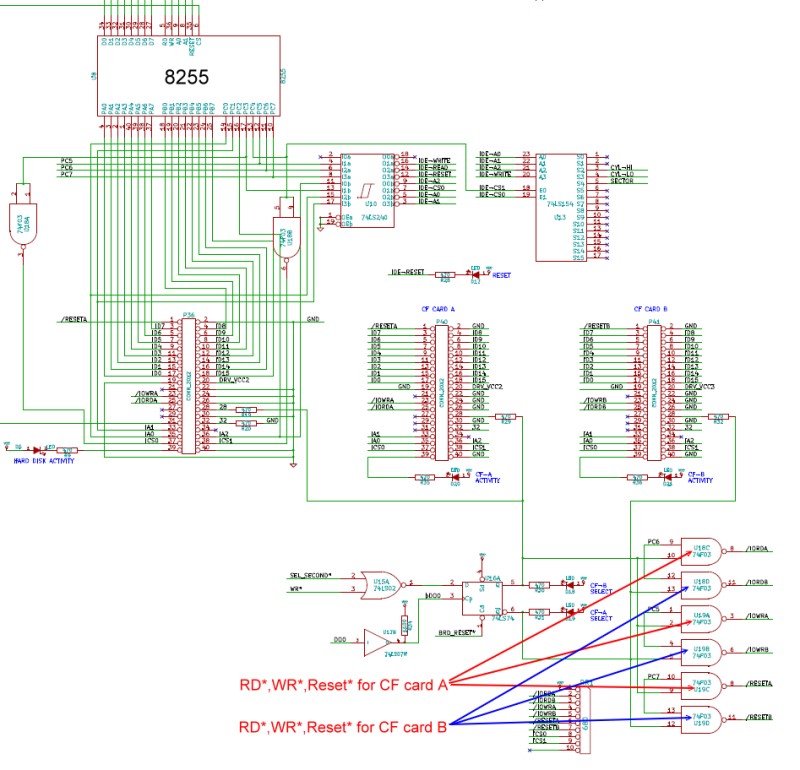
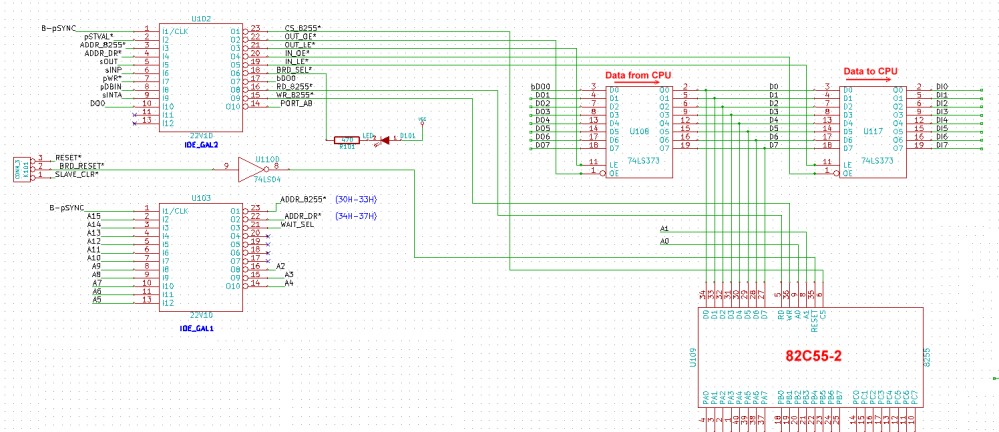
Here is a detailed schematic of the board.  If you have an interest in such a bare board, let Andrew or I know. We made an initial batch of 20 boards (for $20 each). These are all now gone. If there is enough interest another batch will be made.  This clearly applies only to people who know what they are doing and can splice in a CPM, CPM3 or DOS BIOS  driver to their system.  I have opened up a forum entry for questions and comments about this board here.  (BTW, we intend to develope a number of S-100 boards in the future so stay tuned!).

Help Building The Board
Should you decide to build a board like this yourself, here are some useful tips and step by step instructions in doing so.

First install the voltage regulator and power supply capacitors. Make sure the capacitor on the +8 volts side of the regulator is rated for at least 15 volts. Install all the sockets and filter capacitors, resistors and LED's. For the LED's make sure the +5 connection (the longer LED lead) is orientated correctly before you solder it in. Then place the board in a system with an extender card and check the is 5 volts on each and every 20 pin and 14 pin socket (pins 20 & 14).  Check pin
26 of the 8255 socket also is +5 volts. Carefully inspect each solder joint and make sure it is correct. There is a great ground plain on this board, however this causes the ground pin pods for each socket have heat conducted away well when soldering. I sometimes find it hard to get a good joint. I had one case where the board LED's worked fine only if the board was flexed. It later turned out to be a bad ground pin solder joint I did.

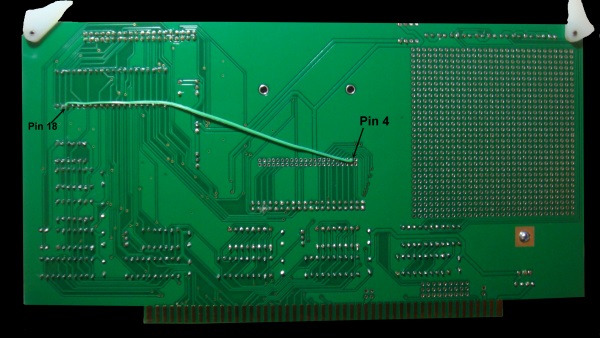
Unfortunately there was a slight error in the board's manufacture that requires a single jumper wire be connected from pin 18 of the 8255 (U8) to pin 4 of the connector P42.  The picture below shows the back of the board with this long wire jumper. Make sure you use the correct P42 pin. It's the second pin in top row of pins.

Back Wire Jumper

Next install the two switches and only U2 and U3.   We now will check port addressing. Let’s assume you will be using the 4 port block 30H to 33H. This is what I have the diagnostic software (MYIDE.ASM) port defaults.  We will set the 16 bit I/O address range to 00xxH by jumpering K5 to 1-2 (the top two positions). Set switch SW2 positions 1-8 to closed. Set switch SW1 to 30-34H by having the switches (left to right):-
Open, closed, closed, open, open, closed, closed, closed.
  
Now put the card in your S-100 extender card and start the computer.
With your monitor at 0H in RAM enter:-
DB, 30, C3, 00, 00
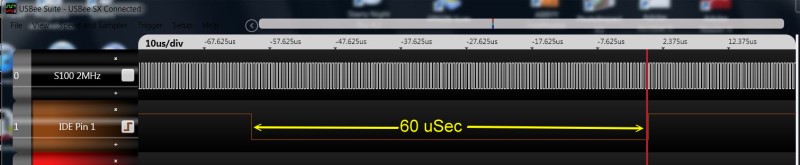
Jump to 0H. With a probe you should have pin 19 of U2 pulse continuously.  Do not go further until you see this.
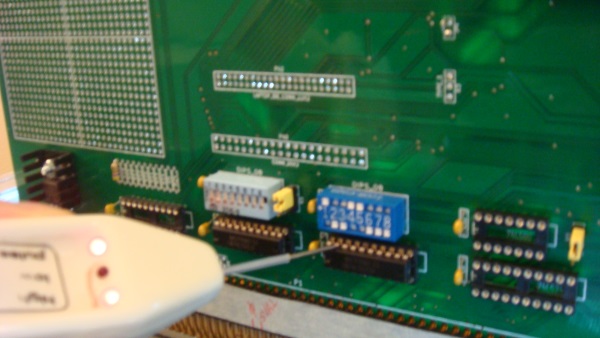
IDI Probe picture

Next add all the other IC’s except the 8255, U7 and U9.  Note, U4 MUST be a 74H04 or 74S04 (see below). The board will not work with IDE/CF cards with a 74LS04. (It seems to be OK for slower Hard Disks with a 74LS04 chip).
 
Repeat the above software test. Check that pin 1 & 19 of empty socket of U9 for a pulse. It should not pulse for any other value except 30H, 31H, 32H, & 33H. This insures we are able to read the data port correctly. Now the write to ports test.

Same software as above except we have:-
D3, 30, C3, 00, 00
Check for a pulse on pins 1 & 19 of empty socket U7.  Again it should not pulse for any other value except 30H, 31H, 32H, & 33H
Only if you get this to work go further.

Insert the two 74LS244’s (U7 & U9) and the 8255.

We will now checkout the 8255. A complex chips with many configuration possibilities/modes.  Fortunately for testing we need only the simplest mode where all 3 ports (A, B & C) are set as simple outputs. To do this from your monitor send to its control port (33H) the byte 80H. With this, port A (30H), port B (31H) and port C (32H) are configured for output ports.

With the LED’s on the board you can easily monitor port A.
Output to port C (32H), 0H.  All the appropriate LED's should come on. Then output 01, 02, 04, 08, 10H, 20H, 40H and 80H. The appropriate LED should go off (see the above schematic).

Next we need to check port A (30H).  Output to port 30H the value 0H.  All the appropriate 8255 pins (4..1, 40..37) should be LOW. Then one at a time output a bit to this port. Starting at bit 0 send 01H to port 30H. See that pin 4 of the 8255 goes high. Continue all the way up to bit 7, pin 37 of the 8255.

Now do the same for the 8255 Port B (31H). First check the pins (18-25).  You will need a copy of the boards schematic. See here.
Output to port 31H the value 0H.  Pins 18-25 of the 8255 should be low.  Output the single bits pattern above and check each appropriate 8255 pin goes high. Only if all of the above checks out should you go further.
 
Next we will check the actual IDE socket pins. Setup the 8255 to all ports output as we did before (Output 80H to port 33H) then output to port 31H the value 0H. ALL appropriate pins, 4,6…18 on any IDE socket should be 0. Then output a 1 to port 31H. ONLY pin 4 on each IDE socket should be high. Same for all the other bits.  Only when you are sure that you can reliably output the correct bit pattern from port 31H of the 8255 to any of the IDE sockets should you go further.

The boards are extremely well made so there is little chance of partial etching. Any stuck bits are probably an error on your part.
 
With the above completed, you are ready to fire things up with an IDE drive. I have used the board with a number of drives and CF cards. I find it is easiest to get things going with an old IDE hard drive.  Be sure you plug you plug the IDE cable in correctly. From the front of the board (V regulators on left) the top IDE socket has pin 1 on the top row at the very right back row of pins.

Download my “MYIDE.ASM” program to check things out.  Run the program under CPM. The drive should come on and display the drive configuration parameters.  See the picture above. The drive I used had 2082 cylinders, 16 heads and 63 sectors/track. You then need to read the sectors/track info you got and if required reassemble the program for your drive with the appropriate equates set in the software. 

As I said, I have two of these new boards running here (on two systems).  They appear very reliable. I have extensively slopped large files to/from memory disks and down to slow floppies. Never a problem. It’s so nice to instantly have CPM3 boot up!
 
The only unusual thing I have found is the requirement of U4 being a fast 74H04 or 74S04 when using CF disks.  It’s an absolute requirement for the cards I have. Not so for regular hard disks.  I have not really determined why this is the case.

You can "Hot Swap" the CF cards in a running CPM system if you first turn off power to the IDE adaptor/CF  board (SW3), remove the CF card. Insert the new card and THEN turn the power  back on with switch SW3.  With CPM you need to warm boot with a ^C.  Clearly there must be a system on the new CF card or you must do the swap where another drive is the current system drive.


Software
Installing CPM3 On The IDE Disk/Card
In order for this IDE card to be of any practical use we need to install CPM (and later, other disk operating systems) on drives interfacing to it.  We could start with CPM version 2.2, but it is actually easier to write a BIOS for CPM3 because CPM3 takes care of buffer sizes greater than 128 bytes internally (all IDE drive sectors are 512 byte sectors) and is in general is a more practical and expandable system. 

A Minimal Floppy Based CP/M System
CPM3 comes in two flavors. A "Non-Banked" system where up to 64K of RAM  can be utilized to run the operation system and application(s).  The second  is a "Banked" system. This utilizes two or more S-100 memory cards to switch in or out various blocks of memory and yet still remain within the 64K memory addressing capability of the Z80. Typically the bank is a 16 or 32K block of RAM that transitions in or out of the CPU's 16 bit address space.   These banks can be port selected utilizing the S-100 phantom line and/or activating and inactivation a port certain S100 RAM boards.

CPM3 Systems

Let us start with the first type of CPM3 system, the Non-banked system.  In this case everything has to reside in less than 64K of RAM. Our minimal system will consist of only Floppy disks and our IDE drive. There is no problem fitting such a system in 64K of RAM.  In the example below Drive A: and  B: will be 8" floppy disks. Our hard drive will be drive C:  and (not needed) drive D: will be a 5" CPM86/IBMPC format compatible disk.  The floppy disk BIOS driver examples are tailored for a Versafloppy II disk controller.  Because of the clean modular nature of CPM3 you should be able to substitute in your own floppy disk BIOS drivers easily.  Let us look at the modules need to build such a CPM3 system. They are all assembled separately and then linked together to make up the system. These will all be available below in the downloads given below, but a few comments/reminder what they do may be of help here.

BIOSKRNL.ASM
This is the Digital Research supplied "core" BIOS kernel software that actually runs the BIOS. This should NEVER be changed by the user EXCEPT for the equate near the start for the BANKED equate. Its set to FALSE in our setup. Nothing else should be altered in the file.

BDOS3.SPR
This is a Digital Research supplied assembled file of the BDOS "core" operation system. It is used by the GENCPM program (see below) to make the final CPM3.SYS image.

SCB3.ASM
Contains public definitions of various variables used throughout the various modules. Do not alter this file either.

CHARIO3.ASM
This file contains modules you need to configure for character I/O to the consol, printer etc. 

MOVE3.ASM
This file contains modules you need to configure move a block of RAM from one location in memory to another. Since this system resides within 64K of RAM the routine is simple.
 
8boot3.asm
This file contains modules you need to configure to initialize hardware before CPM is loaded. It then loads in the CPM file "CCP.COM" from the data tracks of the "boot disk".  In our first example the boot disk will be an 8" floppy disk A:

8drvtbl3.asm
This short file contains a table that points to the various "drive parameter tables"  in other modules that are written for various drives. In our case the drives A:,B: & D: (floppy disks) and C: our IDE drive.  Each drive/disk has its own "DPH" pointer. For CPM3 there can be up to 16 DPH's.

8FL3.ASM
This file contains modules for the floppy disk read and write functions for the Versafloppy disk controller.  It is included here just for completeness. You need to insert your own floppy disk BIOS in place of this file.  If you already are running CPM3 on a floppy disk system. Little needs to be done. If you are bringing up CPM3 for the first time. Get an A:, B: 8" floppy disk CPM3 system working first.

8ide3.asm
This is the heart of our IDE BIOS for our disk controller.   You need to configure a few variables as described above for your own setup -- nothing more.

Z80.LIB
This is a Digital Research supplied library of routines and macros that came with CPM3 to allow the use of Z80 opcodes.  This file has to be in the same directory as the above code files.

CPM3.LIB
This is a Digital Research supplied library or routines and macros that came with CPM3 to allow the use of various macro statements used in the code.  This file has to be in the same directory as the above code files.

MODEBAUD.LIB
This is a Digital Research supplied library or routines and macros for serial port configuration that came with CPM3

RMAC
This is a Digital Research supplied macro assembler that we will use. It produces reloadable code modules with .SPR extensions.

LINK
The above files are then all linked together with the Digital Research supplied linker.  The [B] option aligns code on even paragraphs in RAM.
The following command does this:-

LINK BIOS3[B]=BIOSKRNL,SCB3,8BOOT3,CHARIO3,MOVE3,8DRVTBL3,8FL3,8IDE3

GENCPM
This is a Digital Research supplied program takes the above LINK generated BIOS3.SPR file and through a series of questions/answers to the operator at the consol generates the final "CPM3.SYS" file.   This .SYS file is then placed of the disk to generate the operating system.  Instead of answering the same questions to GENCPM each time you can use a file called  GENCPM.DAT that contains your default values.  Remember in a 64K non-banked system, the top of RAM may not be FFH if you have a ROM Monitor present. Probably something like EFH.

So we end up with a file called CPM3.sys.  To test our IDE Board out. Start with a clean 8" floppy disk that is bootable with CPM3.  This disk must have two files on it CCP.COM and CPM3.SYS in order to be bootable. Now copy over our new CPM3.SYS file made above replacing the old (floppy only) CPM3.sys file with our new one.

Place this disk in drive A: and reboot the CPM3 system. It should come up as before except now there will be a C: drive that is our IDE hard disk/CF card.  If this is the first time you are using the IDE drive/card type

ERASE  C:*.*

This cleans up the drive directory. You can then copy files across to the IDE drive.  Verify extensively everything is working fine by PIP'ing files back and forth with the [V] (verify) option.  Reboot the system several times etc.

You now have a minimal but solid fast reliable CPM3 system with up to 8MG of storage.

A Minimal Banked-Based  CP/M System
Again it is easiest to start with a working banked Floppy based CPM3 system.  Make sure it is working reliable and make a clean floppy disk with the CCP.COM and CPM3.SYS files on it.  Remember simply copying a banked CPM3.SYS file over to a non banked floppy disk system will not work. This is because the CPM3 loader (the file that is on the system tracks) has to place the CPM3.SYS image in banks 0 and 1 BEFORE transferring control to it. I will explain this in more detail below when we get to putting a loader on to our IDE drive, but for those that wish to move from a non banked to a banked system for the first time, I  have included the files to write a banked  Floppy loader  (for a Versafloppy disk controller) in the downloads (see below).  At least that will get you started.  Alternatively you can skip the BANKED floppy based system and go directly to the banked IDE drive system described below -- although it is a bigger jump!
 
With the banked based system we  take full advantage of CPM3's ability to use more that 64K of RAM for its operations.  All the .ASM files mentioned above have near the start an equate:-

BANKED EQU     FALSE
we need to change it to
BANKED EQU     TRUE

This is easy enough. However because different systems utilize different hardware to bank select their hardware, the module
MOVE3.ASM needs to be tailored carefully for your hardware.  Remember there are two types of move possibilities. Memory moves within the current 64K segment and moves from one memory segment to another is a different bank.   Also be very careful where the DSEG and CSEG start and stop in your floppy BIOS.  Look at the code carefully in 8FL3.asm and 8IDE3.ASM.

Having gone through each .ASM file,  link them as before and make a new CPM3.SYS file as before with GENCPM.  Put this on a Floppy disk and test that you have a functioning banked floppy based CPM3 system that recognizes the IDE drive as drive C:

There is one further complication;  Instead of the Digital Research
BDOS3.SPR core file mentioned above for the non-banked system,  for a banked CPM3 system Digital Research supplies three core files.  They are:-

BNKBIOS3.SPR
RESBDOS3.SPR
BNKBDOS3.SPR

They are used by the GENCPM program (see below) to make the final CPM3.SYS image. All this sounds more complicated than it actually is. The submit files I have in the downloads (see below) do all this automatically. If you already have a banked CPM3 system up and running then you will have no problem adding in the driver for this IDE board.  Just add the new CPM3.SYS file to your floppy disk.


A Minimal IDE based Banked CP/M System
While the above system is nice, fast and reliable it does require us to always boot from the 8" floppy disk to get going.   What we need next is a system where we can boot the CPM3 system directly from the IDE drive/CF card.  In this arrangement the Floppy disks don't even have to be on.  In order to do this however we have a few things to do.

First we need to generate a CPM3.SYS where the A: drive is the IDE drive and the B:,C: & D: drives are the floppy drives.

To do this we simply rearrange the CPM3 drive table pointers. We change the line :-

public dph0,dph1,dph3          ;disk parameter headers
to
public dph1,dph2,dph3         ;disk parameter headers

in the file 8FL3.ASM

and the line:-
PUBLIC DPH2             ;DISK PARAMETER HEADERS
to
PUBLIC DPH0             ;DISK PARAMETER HEADERS

in the file 8IDE3.ASM

Again we assemble, link and generate a CPM3.sys file.
Next we copy that CPM3.SYS file to our IDE drive as well as a copy of the file CCP.COM using our above floppy based system. Take care not to get the IDE and Floppy CPM3.sys files mixed up.

Now the hard part; We need to write a "CPM3 loader" that will load to RAM the above two files to bring up the system.   This loader program will reside on the system track(s) of our IDE drive.  The loader itself is nothing more than a basic stripped down CPM3 module that only reads sectors from its own disk and outputs characters to the consol.

Digital Research supplies a core Loader module (
CPMLDR.REL), we just have to add in a skeletal loader BIOS.

8LDRBIOS.ASM
This is our skeleton loader BIOS. All it does is read in 12 consecutive sectors (each 512 bytes long)  from the start  of our IDE drive (track 0, sectors 2-14) and place them in RAM starting at 100H.

So our commands are:-

RMAC 8LDRBIOS.ASM
LINK 8CPMLDR[L100]=CPMLDR,8LDRBIOS


One minor sidetrack....

The CPMLDR.COM made above, contains the CPMLDR.REL module supplied by DR. However it has a series of annoying CR's to clear the screen for the sign on when it boots. I remove these as follows with CPM3's SID.COM and add a single clear screen character (1AH).

SID CPMLDR.COM
F 226,23d,0 (Currently CR's)
S 225 1A
ESC to escape
W CPM3LDR.COM,100,1600

This will reproduce the loader with a clear screen when CPM3 signs on for the SD Systems Video  board. You can skip this step if you like.

Our next challenge is we need a way of writing this code to track 0 of our IDE drive. We will place the file on Track 0, Sector 2, (Head 0) of the IDE drive.  It will occupy 10X512 byte sectors. So we will load in 12 sectors just to be on the safe side (later mods etc).  We could probably use the MYIDE.ASM program described above. But it would be difficult and laborious.

HPUTLDR.ASM
I wrote the short program HPUTLDR.ASM to do this. It will expect the above  CPMLDR.COM file to reside in RAM at 1100H. 

We do the following:-

MAC HPUTLDR                                             ;This will make a .HEX file of HPUTLDR.ASM
SID HPUTLDR.HEX                                       ;This will place the HPUTLOADER at 100H in RAM
RCPMLDR.COM,1000                                    ;CPMLDR will reside at 1100H in RAM
WHPUTLDR.COM,100,2600                           ;4AH records written to the current disk.

Then simply run the file HPUTCPM to write the CPMLDR on to the system tracks. It will
reside at 100H (per CPM) and write the CPMLDR at 1100H to the system track on the disk.

You can use the  MYIDE program to check the sector(s) were written correctly.

The final thing we need then is a short routine for our PROM monitor to load in the above  code from the IDE drive. This will then boot the complete CPM 3 system (via the CCP.COM & CPM3.SYS files).

In my PROM monitor (MASTER.Z80) the "P" command boots the IDE drive.
The relevant part of the "P" command can be seen here. The complete source code for this monitor can be obtained here.


Assembling all this on your Windows based PC.
All the above files can be assembled on any CPM machine. However it is much faster and more convenient to put everything together on a PC. To do this we use a 8080/CPM simulator. There are a few out there. I particularly like Peter Schorn's Altair 8080 SIMH simulator. You can find out more about it here.  If it is placed in any folder of files on your PC system you can suck the files in from that folder on to a CPM drive in the simulator and work with them there as if you are running a 50MHz CPM machine. You can later export the finished product(s) back to your Windows folder.  You can then edit and save your .ASM or .Z80 files with your favorite editor on a PC. I use Microsoft's Visual Studio 2008.  This back and forth movement of files between a windows and PC "box" is very convenient and time efficient.

The simulator needs to have the following files in the same folder your work files are in:-

Altairz80.exe
CPM3.dsk
i.dsk
cpm3
app.dsk


These files will be in each of the download folders described below. If you wish to construct your CPM3 system on a current Z80/CPM system, just ignore these files.

To launch the CPM simulator click on
altairZ80 in the downloaded set of files.  A CMD type window will appear.
In it enter
do cpm3 (and a CR) to launch CPM3 in the simulator. 
Then enter I: to go to the 5MG "memory disk" in the simulator.
 
Then use the
'R' command to read in the submit file I have include for each CPM system you will be working with (see below).
For example:-
r 8makecpm.sub

then typing:-
submit 8makecpm
will generate the complete
CPM3.sys file and write it to your windows folder.
Note if you save the
i.dsk file that in your windows folder, you will save the CPM3 I: disk of the simulator should you wish to return to it later.

File Downloads
All the files required to generate a minimal non-banked floppy based system can be obtained here.
The Digital Research RMAC, MAC, SID, GENCPM and LINK programs (as well as others) can be obtained here.
These same files can later be modified as explained above to generate a floppy based banked system and can be obtained here

All the files required to generate a
banked IDE drive  based system can be obtained here.
All the files required to generate a CPM loader to boot CPM3 directly from the IDE drive can be obtained here.
In case anybody is interested (as mentioned above), the equivalent Floppy disk CPM loader files they can be obtained here. 

For those that are interested, all the files needed to generate a full blown CPM3 system with 8" & 5" Floppy disks in many disk formats, an IDE drive/CF card, a 1Mg memory disk and a 5Mg Winchester ST506 hard disk can be obtained here.

What would really be nice is if somebody could write software to setup this CPM system directly in a Windows PC system and write it to a CF card in that system.  When done you could then just pop the card in your CPM machine. It should be possible, either directly or via the CPM3 simulator described above.   Anybody want to try this?


Other pages describing my S-100 hardware and software.
Please click here  to continue...


This page was last modified on 01/31/2010