This is one of the more complex S100
boards I have fabricated. It took over 6 months to complete. It
is a four layer board. This board is not recommended for beginners.
There is almost a limitless amount of software that can be written for this
board. While a very extensive ROM monitor is included (for both Real mode
and Protected mode), several sections remain to be written. These include:-
1. Modifying the
IDE/CF card BIOS to work
with the onboard SD cards to run MSDOS V4.01.
2. Add 16 bit data transfers for the lower 64K S100 bus
RAM "window". Currently that RAM is only 8 bits. (The remaining
16MB of RAM is of course 32 bits wide).
3. Modify the FPGA code to run the board as a bus master.
Introduction
The original S100 bus
80486 board
has proven to be a very reliable board. If you are not familiar with that board
it is essential you read up on the 80486 Board before going any further here.
Much of what is written here assumes you are familiar with that board.
There are also introductions to FPGAs and how to program and use them
described here.
We will now move things up a notch and use the full power of the
Cyclone IV FPGA to make a 80484 CPU board with many onboard functions. We will construct and program the FPGA to be a S100 Bus
80486 CPU "Single Board Computer" (SBC) board somewhat similar to our
earlier S100 bus Z80 FPGA SBC
and 80286 FPGA CPU boards.
The board contains:- A "real' 80486 CPU running at 25mHz.
The board has 16MB of onboard 32 bit wide fast static RAM that is addressable locally to the 80486
A CPU carve out "window" to the S100 bus RAM - variable from (0K to 16MB) is
provided running at 8mHz.
An onboard 128K EE-PROM containing the 80486 monitor along with
diagnostics support for the SD cards, an IDE/CF card and the ZFDC Floppy
disk controller.
The 8 bit wide ROM is transferred to the 32 bit wide onboard RAM upon
startup and removed from the CPU's address space
An IBM PC PS2 keyboard input port (with input converted to standard ASCII)
A USB serial I/O port at speeds up to 38K to a PC
Two SD Micro Card slots and an interface to boot MSDOS V4.01
There is an FPGA interface to an onboard SPI DS1305 clock/calendar RTC chip with battery backup.
A 4 bit IOBYTE input software port and 3 status LEDs.
While this board internally is quite complex, externally it looks and
behaves fairly
simple. This can be part of a simple stand alone S100 bus system since with
this board alone and a simple USB/FPGA programmer they can have a complete
S100 bus MSDOS system. Then gradually the user can inactivate various
sections within the FPGA code and activate the corresponding old/new S100
boards they have in their system. They can start off by looking upon the FPGA
as a black box.
Keeping in mind the above potential audience, I will try and over-explain
some things below. Our "hard core" audience can just skip ahead.
That said, this is NOT a board for a complete electronic novice. Minimally
you should have some soldering experience and knowledge of electronic
circuits. You should for example be comfortable with web sites that
describe Arduino or Raspberry circuits. You should have a basic
understanding what a Field Programmable Gated Array (FPGA) is. If not, look
them up on web. In summary, these chips allow you to lay down any
circuit you might come up with within the FPGA chip just like you might do by
soldering hundreds of TTL/74xxx chips together as in the old days. Its
all done in software. The resulting code/pattern is then programmed into the
chip.
For those more electronically sophisticated... I looked at using an internal
80486 FPGA simulator. I could not find a free one in
the public domain. There is an nice 80186 FPGA simulator by
Jamie Iles but unfortunately the
code was too complex/convoluted for me to use. Also the 80186 has
defined I/O ports for its support components that often conflict with other
S100 board hardware.
The choice of 80486 CPU is quite important, in order to avoid the need for
5V voltage level shifters for the FPGA we will use the
3.3V AMD 80486 CPU.
This way the 80486 CPU can directly interface with the FPGA GPIO pins.
The board will not work with the older/slower 5V 80486 CPU's.
Finally I would like to point out that while the chip density on the board
is not too bad, the routing to the chip pins is very dense. It
took a 4 layer board to fit everything. Even with that,
Freerouter
took up to 24 hours to get a reasonable solution.
What Is Needed
The FPGA we will use here is an
Altera/Intel
Cyclone IV FPGA. This chip is currently in about the middle range
of the programming capacity of FPGA's. The actual chip uses a
"Ball Grid Array" method of soldering it to a printed circuit board.
This requires some specialized equipment, so normally one purchases an
"adaptor board" for these chips with the chip on it. Besides providing "normal" pin
attachments to (in our case), the main S100 board, these
adaptors contain a number of voltage regulators, Flash RAM, a programming
socket and other components these FPGAs require to operate.
As for our previous boards we will use the WaveShare "CoreE4CE10"
Cyclone IV board adaptor. Its schematic can be seen
here.
The second thing you will need is a device to program the FPGA chip itself.
There are many FPGA programmers available. I really like the
USB Blaster (V2)
that Waveshare sells.
Its simple and reliable. And importantly, works directly within
Intel's Quartus V12 (see below).
You will also need an EEPROM burner for the onboard EEPROM. I like the
Wellon burners.
Somewhat unexpectedly you will need to pay particular attention to the
special very tightly spaced pins on the above adaptor board. Because
there are so many FPGA output pins, its not practical to have a connector
with the standard PC board 0.1" pin spacing. The above WaveShare unit
uses unusual 2 mm dual row pin connectors. Unlike to normal 0.1"
connectors these are quite rare an expensive. If you solder these female
sockets to the board the WaveShare adaptor sits quite high on the board and
will prevent the next S100 bus slot from being used. If you carefully
remove the JTAG socket top border edge with a wire cutter - all around about
1/8", it will fit into most S100 bus motherboards without taking up two
slots. Alternatively you can solder the adaptor directly to the S100 board.
Of course removing the adaptor is all but impossible in this case.
Please note the 2 mm dual row pin connectors (Digi-Key #1212-30-ND sockets)
for the WaveShare adaptor are quite tricky to fit on to the board. I
found the best way to do this (after trimming them to pin size), is to push them half way
on to the adaptor pins and then wiggle them to fit the whole unit on to the
S100 board. Figure on spending 10 minutes on this step!
Do not solder them to the board first and then try and press the adaptor
down on them. They are very fragile and internally the leaves will
bend if socket angles are not exactly correct. When in place, check
each pin is visible on the back of the board before soldering. Only
then solder all around. Add as little solder to each pin as possible -
the narrow pins have a tendency to wick up solder internally. I find
it best to have the socket base slightly above the front board surface when
soldering in the first two pins. Wedge a sheet of thick paper between the
socket and the board initially. Better
sockets are the Mouser #437-8338703810001101
38 pin sockets (carefully
clipped to size). However these sockets are often out of stock at Mouser
The rest of the boards components are standard -- available from Jameco,
Mouser, Digi-Key etc. For prototype boards I generally use "double swipe" IC
sockets. For a critical board like this I prefer to use "Machine Tooled" IC
sockets. However they are more expensive and you have to be particularly
careful not to bend the actual IC pins.
Quartus Prime. For Altera/Intel FPGA's the program of choice to program them is called
Quartus Prime. This a very large Windows based IDE
interface. It is completely self contained with everything you need
to write FPGA code and program the chips. Its an expensive software package.
Fortunately Intel supplies a "Quartus Lite" free version
for students and people like us. Even this is way overkill for our use. The
most recent version can be downloaded from
this Intel site. The package will take ~20 minutes to
install on Windows 10. You may want to first review
this
video about the installing process. Please see the Notes section at the
bottom of this page for more help installing Quartus.
Please keep in mind that programming an FPGA is different from the normal
linear/sequential programming approach you may be used to. On an FPGA
everything is potentially happening at once. Good FPGA programmers
take years to excel and currently are in high demand. Timing
and power distributions across the chip almost become an art form.
Fortunately out needs will be far simpler. Also there seems to
be an excellent community of experienced people ready to help -- beginners.
I have found the
Intel FPGA Forum to be very useful and helpful. However by far
the best way to get started is to look at a few YouTube demonstrations.
One outstanding YouTube video to get you going with Block Design File FPGA
programming is this one by
ClockFabrick Electronics Academy.
Note, click on the "full screen icon" for easy viewing. Use ESC to return.
Also
please allow a few minutes for it to download. It's a very large (50 minutes)
video file.
For absolute FPGA beginners, rest assured, you can more or less use the FPGA
code examples below as "Black boxes" to get this board up and running.
However you will be missing one major aspect of the board. By stepping along
and understanding how the FPGA code works you will in the end have the
ability to modify the board in amazing ways.
Step By Step Building the
FPGA 80486 SBC Board The build instructions are fairly simple for this board but because it is a complex board building it should not be rushed. As always, first examine the bare board carefully for scratches or damaged traces, use a magnifying glass if need be. A broken trace is almost impossible to detect by eye on a completed board. Solder in all the required IC sockets,
resistors, resistor arrays, capacitors, jumpers, and the Pololu 5V and 3.3V voltage regulators. Also do not add
the MicroSD Card Adaptor yet. Please be sure you put the
resistor arrays in with the correct orientation of pin 1. An incorrect
orientation is one of the most difficult things to detect/debug on a board
if not noticed. Check their values
before soldering (they are difficult to remove). Insert all jumper arrays.
The holes for the PS/2 keyboard socket are slightly off -- at least for the
Jameco one. The lowest two pins need to be bent slightly. Clip
off the 3 outer shell ground tags. You can just add solder to the outer
shell and the board shell holes when the PS2 pins are soldered in.
Note there are two sockets for the Pololu 5V regulators. While the older ones
(D24V25F5) are still available
and use P1, it seems Pololu is suggesting users use the newer
D24V22F5's
(5V, 2.5 Amp) units, it has a different pinout, use this one in P67. More
recently they also added the equivalent
D24V22F3
3.3V regulators. Use socket pins P24. If you use the older Pololu
D24V25F3
3.3 V regulator use socket P4. Note, you can also use the (less
expensive) EzSBC
regulators in P67 and P24 (the rightmost 3 pins in each case).
When adding the LED's be sure to orient them correctly. (Usually the longer
lead in the square pad). Add them now.
Please take care to not "slobber" solder on the sockets. They are very
closely spaced on this board with vias often close to a socket pin -
particularly for the FPGA adaptor sockets. Be sure you also orientate the coin battery socket correctly. The + side of the buzzed in toward
the right side of the board. Do not add the actual battery yet. The six PS2 Keyboard
socket pins need to be slightly bent to fit as I said above. You can clip off the
outer shield ground pads, just add a drop of solder on the case sides when
the pins are soldered in.
For
prototype boards I generally use "double swipe" IC sockets. For a critical
board like this I prefer to use "Machine Tooled" IC sockets. However they
are more expensive and you have to be particularly careful not to bend the
IC pins.
Don't forget to add the small
32.768 KHz crystal
X1 next to the RTC
socket.
For testing you may want to remove every
S100 bus board in your system except your master Z80 CPU board, and its RAM
board. If you have one, keep the
S100 Bus SMB and/or the
Bus Display
Board).
As
we shall see below during the software build, there are two options for the
80486 monitor console IO. If you have a Propeller
Console IO Board, great, use it. If not, you will need to use the onboard USB
port connected to a TTY terminal on your PC for monitor IO. The former
option is much better and far easier to get going. It will be a few steps
down before you have a working USB port. Except for looking with a logic
probe at critical signals you will be in a sense flying blind in that case.
Alternatively you can modify the FPGA (and later 80486 monitor) code to
address your own Console IO ports.
Lets get started. Place the board as shown above in the bus without any
chips inserted, (including the Waveshare FPGA adaptor). There are two
separate voltage rails on this board 5V and 3.3V. Carefully examine the
schematic and check the voltage to the individual sockets are either 5V or
3.3V. Be sure you have 3.3V and 5V going to the appropriate pins on the
Waveshare FPGA adaptor socket. 5V on P7 pin 2, or P8
pin 1 will destroy the unit.
Here is a picture of the board at this stage.
Carefully insert the WaveShare
Cyclone IV adaptor in its sockets. No other chips. Power on the computer.
"Virgin" Cyclone IV Adaptor boards from WaveShare seem to have the FPGA
preloaded with a program (in the
EPCS16 Flash RAM) that already that pulses its
4 onboard LEDs. Note the flashing rate.
Load Quartus and open the Project file80486_FPGA.qpf,then open the file
80486_FPGA.bdf. When loaded, "Compile
the Design", then "Program
the Device" and then hit the "Start"
button. The LED's on the Waveshare adaptor should flash differently.
To confirm, kill the power and reboot the computer. The code in the FPGA is
lost so the original flashing rates should reappear. Note,
if you are using a previously programmed FPGA adaptor with code "burnt" into
the FPGA the power-on flashing will probably not be present. In fact,
Waveshare may in the future supply adaptors without the flashing code in
them.
Very important the LED D3
"BOARD_ACTIVE"should be flashing.
This is your first connection of the FPGA adaptor to the outside world!
Do not go forward until you see this response.
Adding the Board Components
Remove the FPGA adaptor and solder in directly to the board U25, U23, U13
(all 74VLC273's). Re-insert the Waveshare adaptor. Also solder in directly
U2 (a 74VLC373) and U20 (A 74LS240). Make sure you have good chips (ideally first tested
on another board).
Next add all IC sockets and chips to the board except U5 (the RTC chip), its
crystal X1, and the SD card sockets P14 and P15.
Do not install the 32 bit onboard memory sockets P16 and P17 yet.
Carefully install a 3V 80486 chip. Make sure all its pins are straight first
before pressing it into its socket carefully. Be sure its pin 1 is the
bottom left hand corner.
Jumper K1 and K3 2-3. Jumper JP1, JP2 and JP3.
JP12, JP13, JP14 are ground connections for IEEE-696 boards. Not really
needed here.
CPU jumper JP4 is normally
closed and K2
open. Jumper K6 and K7 2-3 for now. Jumper the TMA jumper block, P30 1-2 for the normal Z80 monitor
"O" command to
transfer the Z80 master bus control to this bus slave. This assumes
you are using a S100Computers
Z80 CPU and SMB board.
The 80486 Monitor Test. We use a 128K EEPROM in the "ROM"
socket U19with a
80386/80486 monitor program. This is by now a quite complex CPU monitor
program capable of running the CPU in real and protected mode, and capable
of emulating a PC ROM BIOS to run MSDOS V4.01. It has evolved over the years
and is described in detail
here.
Note the 80486 ROM is not used after power-up. It's 8 bit bus interface code is
moved to the 32 bit wide RAM on power-up (this assumes you have
RELOCATE_ROM EQU TRUE
in the
FPGA_90486.A86
monitor).
Here is the relevant circuit (used only upon boot-up).
You will note the ROM address lines directly interface with the S100 bus.
These are drive by the 80486 via
U8, U14 & U11.
Also the ROM is always selected, this shortens its access time. Only when
5V_ROM_OE*
is low does its data reach the CPU. The 8 bit CPU data bus selection and
5V_ROM_OE*
is programed in the FPGA. The S100 bus
Phantom*
line goes low to make sure
no bus RAM data reaches the CPU. Again remember this whole circuit is
only used on power-up. After that the whole ROM circuit is inactivated in
the FPGA by a single CPU input of
Port 28H. While not normally used, the
ROM can be re-activated by toggling on/off inputs from
Port 28H.
Recall the 80486 CPU always comes up on power on at
FFFFFFF0H.
We will initially use a simple program loop to write "3's" on the console to
test the circuit. The following code is written into the 27C010
EEPROM at
1FFF0H
within the EEPROM. This can be easily done with
most ROM programmers. Just be sure it is at the top of the ROM address
space (1FFF0H).
B0 33 MOV
AL,33H
E6 01 OUT 01H,AL ;Console IO Board Port
EB FA JMP Start
Note this code assumes the
Propeller Console
IO board at Port 1.
It does not matter what else is in the ROM at this stage. I like to fill it
with
NOP's (90H).
Always check your EEPROM you have
B0,33,E6....
at
1FFF0H in
your burnt ROM.
Here is a picture of what should appear on the screen.
This simple test loop must work flawlessly before going any further.
As we discovered years back, the
80486 WR signal comes out too early for most
S100 bus boards. It must be delayed with the following FPGA circuit.
The above settings should work for most S100 bus RAM boards, but if you see
RAM write errors try changing the 74164 "jumpers" in the FPGA diagram.
Here is the desired signals using the above pre- and post-pWR- delays:-
Observe how the S100 bus pWR- (red) signal is well within the sOUT (brown)
and MEMW (brown) signals.
You can check these memory writes in your S100 RAM by hand writing the
following bytes into your 27C010 EEPROM at 1FFF0H.
TestB:
31DB XOR BX,BX
8EDB MOV DS,BX ;Set segment
0:0000H
B033 MOV AL,33H
8807 MOV [BX],AL ;Write to RAM at
0:0000H
8A07 MOV AL,[BX] ;Read back from RAM
E601 OUT 01H,AL ;Display the
result (must be 3333's)
EB JMP TestB Your console should display only 3333's
Alternatively you can assemble the FPGA486
monitor code (see below), with "TEST2 EQU TRUE"
at the start of your FPGA486.A86
code and burn it as a .bin
file with your ROM programmer.
Again your console should display only 3333's
LOADING THE ROM MONITOR
If both these tests work there is a good chance the critical components of
the board are OK. Next we will burn our complete FPGA486.bin file (supplied below) into the
EEPROM.
Since we have no onboard 32 bit RAM yet, we need to set
Dip SW3 to ON.
This will prevent the monitor ROM being relocated to 32 bit RAM (currently
not added) upon reset.
Remember the initial boot code has to reside in the ROM so the CPU reads it at
address FFFFFFF0H.
We use a 128K EEPROM (a Greenliant
GLS29EE010
or similar chip). This chip can be looked at as two 64K ROM
blocks. For the above code it must reside in the
upper 64K block of its final 16K bytes.
Here is what you do for most
Wellon
programmers:-
To burn say a GLS29EE010 EEPROM's with a Wellon VP290 Programmer... Load the FPGA486.BIN file. Set "To Buffer Address (HEX)":
10000 Change nothing else. (The Dialog box should be:- Normal, Normal, 0xFF,0,
2000, Binary)
The file is
FPGA486.bin (see the bottom of this page to download it).
Here are pictures of the process using a Wellon Programmer.
Next load the 80486_FPGA.brd file into Quartus, assemble it, and use it to
run the FPGA in the Waveshare module and transfer
control to the board with your Z80 CPU board Z80 monitor
"O"
command.
Make sure
Dip SW3 is ON.
The 80486 should sigh-on as shown here:-
Note
with SW3 on there will be no ROM relocation to RAM.
The "K" command shows you the menu options in 80486 real mode.
Since we have not yet added the onboard 32 bit RAM the monitor/FPGA as
configured in default mode only has the lowest 64K of S100 bus RAM active.
This can be easily changed in the FPGA
.brd file. However since the 80486 is not
addressing this S100 bus RAM in 32 bit mode normally we will keep the S100
bus RAM "window" to a minimum -- if indeed you need it at all. Here is
the FPGA 80486.brd relevant section for the RAM addressing. Please
study it in Quartus.
To recap, after a reset the 80486 boots to
0FFFFFFF0H in the
onboard ROM, address by the ROM S100_ROM_SEL-.
It will do a far jump to 0FF000H
also address by the ROM S100_ROM_SEL-.
As described above, any CPU address less than 64K will activate
S100_RAM_ACCESS-.
Any CPU address above this range will activate
32_BIT_RAM ACCESS-,
in particular RAM_CS-
to the onboard 32 bit wide RAM. There is however a carve out window in the
first 1MB for VGA RAM and a VGA ROM if a VGA board is present (See
S100_WINDOW).
The 80486 has a complicated process to address 8, 16 and 32 bit memories
at any address position. It can be
forced to do only 8 or 16 bit modes by its two pins
BS8*
and
BS16*. Much of the complexity at the bottom of
the Quartus
FPGA486.brd
file is devoted to the required logic to handle this process.
The net result to the user is the 80486 interfaces the S100 bus as 8 bits
with a 10MHz clock and the 16MB onboard RAM as 32 bits with a clock
speed increased to 30MHz.
Adding 16MB of 32 bit wide Onboard RAM.
Next we will add the 16MB of 32 bit wide onboard RAM. There are many ways to
add onboard RAM to this board. In fact we could even add a little 32 bit
wide RAM programmed into the FPGA module itself. Best would be a DRAM
SIMM module. However I'm currently not capable of doing a circuit to refresh
these chips. I ended up with four 4MX8
Alliance AS6C6416 Static RAM
chips. The advantage of using 4 separate chips is the
DWord, Word and
Byte
memory access issue is easy to do in hardware. Each chip has its
own CS* line for each byte within the 32 bit address.
Here is a picture of the 16MB RAM module. You will need to carefully solder
these SMD to the RAM mini-board.
See
here for a description of the soldering process.
These are expensive chips (M
913-AS6C6416-55TIN,
~$32 each). You could also use 4 of the lower capacity 2MB or 1MB
equivalent chips.
Note these are completely differen mezzanine RAM boards from those
we use on our 16MB S100 bus RAM boards (which were only 16 bits wide).
It is absolutely essential you test the integrity
of the above RAM. The FPGA486 monitor has some extensive test to do
this. You need to boot the board with the RAM module in place with
the Z80 monitor "O" command. This brings up the 80486 in Real
mode. To access RAM above 1MB you need to run the 804 86 in Protected
mode. Pressing the 80486 menu option "O" will switch the CPU into
this powerful addressing mode. From here you can run various tests on
all 16MBs of RAM with the "J" command. Note these detailed tests cover a
huge expanse of RAM. Even at 30MHz they take well over 1 hour to run
completely.
Here is a Memory map of the first 1MB of RAM in 80486 Real Mode.
Note this is for a system which contains our
Cirrus VGA board.
If that board is not present everything will be RAM.
At this point you can also put the CPU into its "Protected mode" which
allows the full 16MB of RAM addressing. To do this, from the Z80 use the
"O'"
command., and then a second
"O"
command.
Here is an example of a run.
If you pick up a string of errors, chances are you have a RAM pin
soldering problem. Layer some solder flux on all the RAM pins and
briefly run a hot solder tip along the pins. Spray off the excess flux
and check for cross bridges.
All tests must run without errors. If you get to this point you
are well on your way to having a very functional board.
Adding the USB Serial Port
We will now add a USB Port for an alternative Console I/O to the board.
This will be
a relief to those that do not have the Propeller Console IO Board and may have
been flying almost blind up to now.
There are numerous Serial to USB converters available these days. This
board will work with these common Adfruit or SparkFun ones shown here:-
All 3 fit into the socket P33. I actually prefer the FT231x, but the Adafruit CP2104 brings out RTS and CTS to the bottom P3.
This is useful for fast connections (XModem etc.).
Note the USB side sockets P32 & P34 are unused, they are only there to stabilize the adaptors and in fact need
are not needed.
Also is the first time we will be using Public Domain software modules.
These are available for chips like the Cyclone IV Series in many places on
the web.
I mention in particular
OpenCores,
Javier
Valcare's FPGA home page and
fpga4fun.
In most case however the source is in VHDL or
Verilog "raw" format.
Fortunately Quartus allows you to convert the module to a
.bsf file so it
can be used directly in our (growing)
FPGA486.bdf file.
In this case we use the
UART.V file from OpenCores
Then under the File menu:-
Create\Update,Create a Symbol File from current file.
We create
uart.bsf.
Then within the Quartus Symbol Tool, under Project, you will find
uart. Drag that into your growing .bdf
file -- I always add components at the bottom of the growing
.brd
file.
This is how one adds software modules in Quartus. Its already loaded
for you however in our version of FPGA486.bdf.
Here is the core circuit within that file.
The above circuit is actually an RS232 UART circuit. We use one
of the above RS232->USB adaptors to convert the bidirectional data to a USB
format.
As I said above,
I like to use the
SparkFun
FT231x. It's simple and reliable and uses a USB micro connection.
It can run at 5V or 3.3V.
Since we are connecting the chip to the FPGA directly you need to jumper the
chip on the back to 3.3V. SparkFun also supplies a SparkFun FTDI "Basic" converter, FT01, which uses
the older USB mini connector -- same pin connections.
On the receiving side you will need a PC TTY terminal. Again there are many.
I like the Telnet Program
Absolute Telnet. Select "Properties", then select "Connection".
Your SparkFun windows driver should appear as a
COMx port.
If you pull out
the USB cord that COM port should disappear from the "port" dropdown menu.
It will reappear if you reconnect.
Set to 38400 baud, 1 Stop bit, No
parity. Another good Telnet program is
Tera Term. This one
can be downloaded for free from
here.
The default data USB data port is at
82H. So from the
FPGA486 monitor
if you enter:-
QO82,33 You should see a
"3"
on the USB/TTY
terminal. You must see this to continue.
Console IO Switches
On this board there are 4 different
I/O possibilities for a Console I/O for the 80486 Monitor (and MSDOS).
1. The Propeller Console IO board.
2. A USB port connected to a PC and a TTY character terminal.
3. For both of the above, the keyboard can instead come from a
PS2 keyboard connected to the boards PS2 socket
P35 (or P18)
4. For all 3 of the above, the Console output can instead go to
our S100 bus VGA
display. We will discuss the PS2 Keyboard and VGA connection further below.
The decision in the FPGA486 monitor is based on the lower 3 bits of the 8 bit
FPGA_IOBYTE
port (8EH). Defined as follows:-
CONSOL IN/OUT:-
; FPGA_IOBYTE xxxxx111B Propeller IN and
OUT
; FPGA_IOBYTE xxxxxxx0B USB Port IN and OUT
; FPGA_IOBYTE xxxxxx0xB PS2 keyboard IN, Propeller or USB out
(depending on bit 0)
; FPGA_IOBYTE xxxxx0xxB Propeller, USB or PS2 keyboard IN, always VGA
Video Board OUT in MSDOS
Upon initialization the ROM software reads the lower nibble of
the
FPGA_IOBYTE
(port
8EH,
set with SW1)
and copies it to the upper nibble of
FPGA_IOBYTE port 8EH.
Later in software, these upper 4 bits can be changed if desired allowing for
dynamic console I/O redirection.
Remember however with a hardware reset the
SW1
bits are always reapplied to the FPGA_IOBYTE upper nibble. Here is an
example where we use th USB port for Console IO (xxxxxxx0B).
With all 4 switches open, the FPGA80486 monitor always boots up with the
Propeller Console IO board for keyboard input and video output.
Note the VGA board will only be activated in MSDOS. In the monitor mose DIP
SW2 has no effect.
Please note that when you bring up MSDOS with this board/monitor there is an
additional option to have the
MSDOS Int 10H
driven console output directed to either the
Propeller Board, the USB port, the
VGA video board
or the S100 Computers Lava
Video board.
The main menu
"B"
command allows you to select this option before booting up MSDOS.
Remember this is only for MSDOS
Interrupt 10
driven console IO.
Adding the PS2 Keyboard Interface.
As an alternate for the FPGA486 Monitor CONSOL input we will add the PS2
Keyboard for input as mentioned
above.
The PS2 module have been described and used with our
V2 FPGA board.
Note the PS2 can also be connected to ribbon cable (via P18) that can be
connected to the back of your S100 Box. The pin-out is the same as for all our
earlier boards.
Here is the Signon image you should get upon reset:-
Remember however that the above redirection of Console output is based on
the
FPGA_IOBYTE
within the
80486 Monitor (SW1).
If you load MSDOS or other software that use the standard MSDOS/IBM
PC BIOS interrupts/calls (INT 10H) they will
utilize the console output requested by the monitor "B"
command as mentioned above.
The RTC Circuit Next
will add the
Clock/Calendar Maxim DS1305 chip
U5
to the board. Also add a
CR2032 3V "coin battery between jumpers
P38 & P39. Make sure the "+" terminal is on the RHS.
This is a simple, but an extremely powerful, 16 pin DIP chip. We
previously used it in our
FPGA Z80 SBC board.
It will
handle almost any date/time requirement you have. It is described in
detail here.
As you can see the interface can be via a SPI or I2C connection. I
have chosen an SPI interface (Pin 9 of the DS1305 to Vcc33).
The trick was integration the interface into the MSDOS compatible ROM BIOS
to get accurate date and time stamping on files etc.
The FPGA SPI/RTC module is already in our FPGA486.bdf
file. Our ROM BIOS has the appropriate code to read the RTC on MSDOS
bootup and put in the correct Time and Date for file stamping.
MSDOS on the original PC utilized a
18.19Hz interrupt to increment a counter in RAM to track the time
changes since bootup. That simple and rapid counter tracks if
the operating system crossed a midnight boundary. When that happens the
current date must be updated. MSDOS gets the actual date/time for file
stamping by looking at the timer pulse number and back calculating.
Currently I have not succeeded in programming the DS1305 chip to
produce an interrupt pulse (RCT_INT*)
counter which it is capable of (see
SET_RTC_1SEC_INT
in the ROM BIOS). To emulate this currently I'm
just using the ~1 second interrupt comes
in on the S100 bus VI2 line from the
SMB V4 board.
In case some MSDOS software requires such an interrupt Jumper P10-2 to
P9-2. Keep in mind this interrupt is not
needed for file data an time stamping. MSDOS reads the RTC directly in the
ROM BIOS.
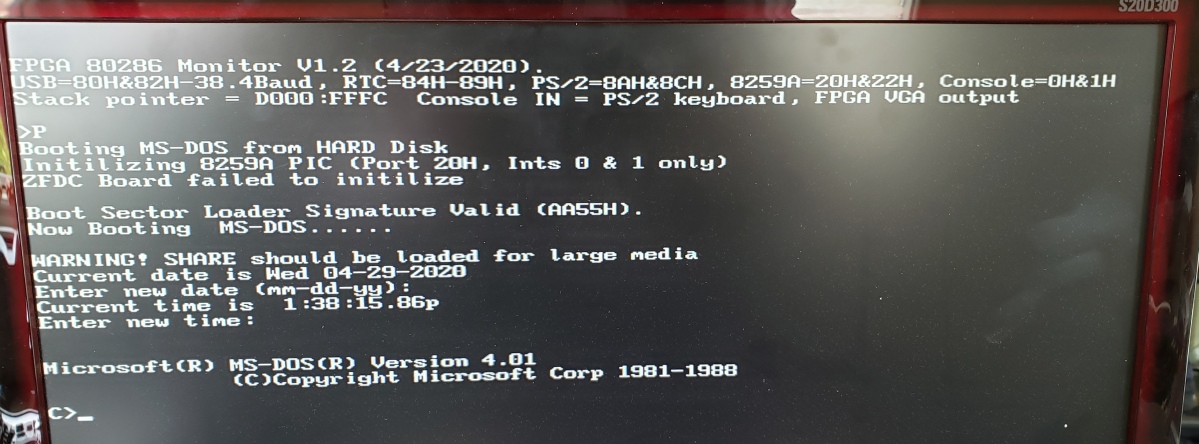
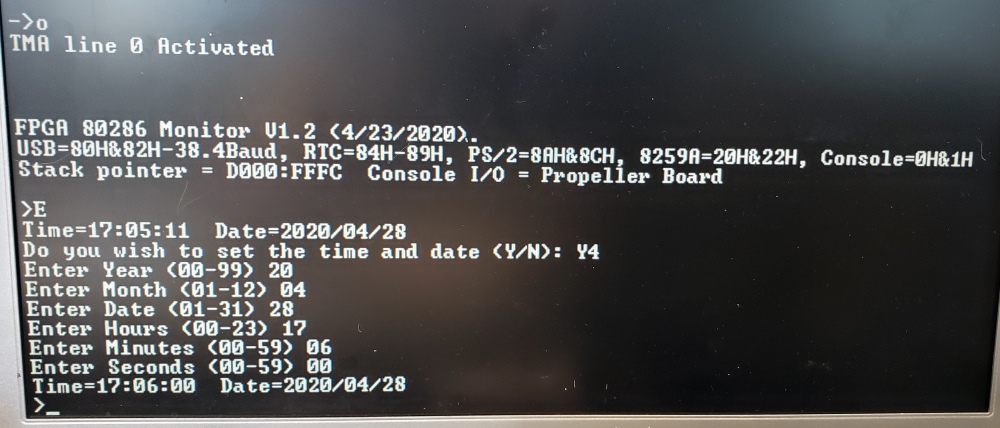
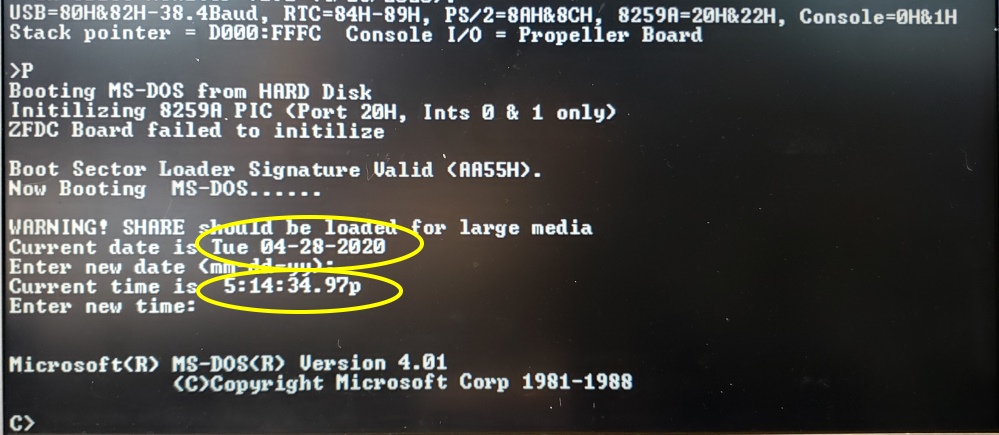
When you first boot up the system you must initialize and set the data and
time with the FPGA486 monitor "E"
command.
You can also do it within MSDOS with the
date
and
time
command prompts. Here is an example setup:-
Now when you load MSDOS the time will be correct.
I should point out that over time the displayed time can be a few minutes
off in 24 hours. I have not debugged this yet.
Adding The SD Card Interface. This is perhaps the most complex aspect of this board. Not
only in terms of the software but because today SD cards come in all shapes
and sizes. There are numerous articles on the web describing how to
determine the type of SD card present and even more articles describing how
to "initialize" them. Three good articles that help me a lot are: Secure
Digital (SD) Card Spec and Info
What is the correct command sequence for microSD card initialization in SPI?
and the excellent code example by CC Dharmani, see
here
The interface is a complete transplant from the
FPGA Z80 SBC board and
FPGA_80286_SBC board. The code below will read and write to
today's very common Type 2 SD cards.
It would have to be modified to work with the older
Type 1 cards. These
require a different initialization sequence. Experienced SD programmers
may note during the card initialization sequence I add valid CRC bytes to the
initialization commands before turning off CRC checking. I also
actually
set the sector size to 512 bytes . Many programs do not do this but
the are reports of some Type 2 SD cards
actually requiring these steps.
As to the actual Type 2 cards themselves, they come in two sizes
of "Micro" adaptors.
This board can use one Adfruit Micro SD adaptor
(P14)
and one
SparkFun Micro SD adaptor (P15).
In other words you can have two SD card drives A & B.
Because we are interfacing the SD card with our 3.3v FPGA we can essentially
connect the SD card directly to the FPGA. This is what these
adaptors do. The Adfruit adaptor runs with the 3.3V supply pin input.
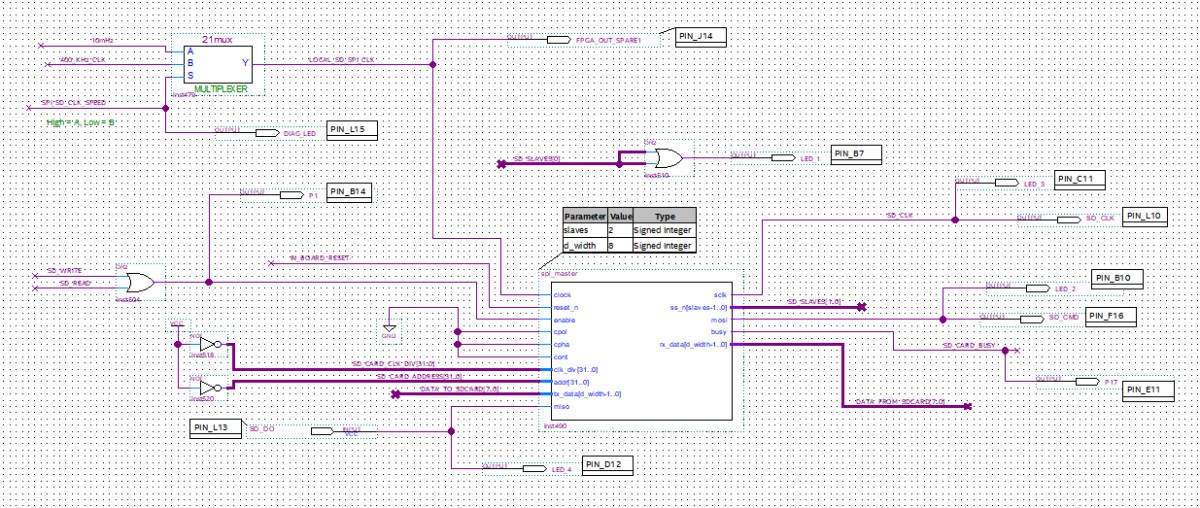
Using an FPGA really illustrates the utility of these FPGA chips. We use our
now tried and true SPI interface to talk to the SD cards. Here is the core SD card SPI interface module.
It's the same as the one we used for our
FPGA Z80 SBC.
We will allow for two slave/SD drives. These are selected outside the above
module by outputting a bit to the CS* pin of the SD card (SD_CS_STATUS-).
You will note that we use two SPI clock frequencies. This is because during
a cold start, SD cards only communicate over the SPI lines at a slow
(~100-200KHz). Once Initialized, this can be jacked up. I use
10 MHz here. The
21mux
controls this by a high/low bit from the
SPEED_PORT.
We will require four I/O ports:-
SD_CARD_BASE EQU 078H
SD_DATA_OUT EQU SD_CARD_BASE
; (78H) Data to SD CONTROLLER
SD_DATA_IN EQU SD_CARD_BASE
; (78H) Data from SD CONTROLLER
SPEED_PORT EQU
SD_CARD_BASE+2 ; (7AH) HIGH TO READ/WRITE SECTORS WITH HIGH
SPEED SPI CLOCK
SD_CS_PORT EQU
SD_CARD_BASE+4 ; (7CH) SD Card CS* Select Port
SD_STATUS EQU
SD_CARD_BASE+2 ; (7CH) SD CARD Status Port
SD_RW EQU
SD_CARD_BASE+3 ; (7EH) Port to pulse SPI Read/Write interface
Initialization of Type 2 SD Cards.
You can skip this section if you like since what is here is already in the
Z80 SD_CARD
software describe here.
In order to use an SD card you must first "initialize" it. This
requires a series of 48 bit SPI commands. These must be sent in the
correct sequence, not continuing forward until the correct response from the
previous command is obtained. Sometimes this involves repeated sending
of a command.
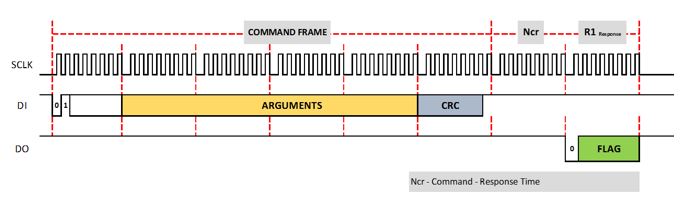
The commands themselves all have the following structure.
The first byte contains the actual "Command". All SD card commands have the
following format
01XXXXXXB.
Here is a list of the commands we use:-
CMD_0: DB
40H,00H,00H,00H,00H,95H,0FFH ; (0+64) CMD0 To
Reset the SD Card interface,
CMD_1: DB 41H,00H,00H,00H,00H,0F9H,0FFH ; (1+64)
CMD1 Activate Init Process
CMD_8: DB 48H,00H,00H,01H,0AAH,87H,0FFH ; (8+64)
CMD8 To check Card Voltage
CMD_9: DB 49H,00H,00H,00H,00H,8FH,0FFH ; (9+64)
CMF9 Read SD Register (CSD)
CMD_13: DB 4DH,00H,00H,00H,00H,081H,0FFH ; (13+64) CMD13
Get SD card status
CMD_16: DB 50H,00H,00H,02H,00H,081H,0FFH ; (16+64) CMD16
Set Sector size to 512 Bytes
CMD_17: DB 51H,00H,00H,00H,00H,0FFH,0FFH ; (17+64) CMD17
Read a single block (Block 0, Used to load boot sector only)
CMD_41: DB 69H,40H,00H,00H,00H,077H,0FFH ; (41+64) CMD41
Activates the card's init. process.
CMD_55: DB 77H,00H,00H,00H,00H,065H,0FFH ; (55+64) CMD55
Application specific command NEXT
CMD_58: DB 7AH,00H,00H,00H,00H,0FDH,0FFH ; (58+64) CMD58
Read SD Cards OCR register
CMD_59: DB 7BH,00H,00H,00H,00H,0FDH,0FFH ; (59+64) CMD59
Turn off CRC checking
You will note there is always a "stuffer" byte 0FFH byte sent before a
return response byte(s) from the SD Card. The return Flag byte contains
the error code if any. Generally (but not always), you want to
receive 00H.
The sequence to initialize Type 2 SD cards is as follows.
Drive the
CS* pin from high to low
Send 24 or more dummy
0FFH bytes.
Then send the following 6-byte command, First byte:
0x40 (CMD0),
Next four bytes:
00000000H,
then the CRC byte (95H),
then send another dummy byte
0FFH byte.
Read the returned byte from the SD Card. If its not
01H, repeat
this command until
01H is
returned.
This means the card is in the "idle state" and we are good to go.
Next send the following 6-byte command, First byte:
0x48 (CMD8), Next four
bytes: 000001AAH, then the CRC byte (87H),
then send another dummy byte 0FFH byte.
Read the returned byte from the SD Card. If it is
01H you probably have a
Type 1 SD card. We
want a 05H
returned, indicating a
Type 2
card.
We confirm this by reading the next 4 bytes from the SD card. If its
000001AAH,
we have a Type 2 card for sure.
Next we "activate" the
Type 2 card by sending two back to back commands CMD55 and
CMD41
exactly as done above for the CMD0 command.
Repeat the latter two commands continuously until you get a return
0H byte.
The SD card specifications says that only
CMD0 and
CMD8 should have a
valid CRC byte in SPI mode, however there are reports that some SD cards
(like Transcend ones) seem to require a proper CRC for
CMD55/CMD41
commands as well. To be on the safe side I add the byte.
Also between every command above, the SD card
CS* line needs to be
lowered and raised when done.
Based on other web postings, I also send
CMD59
to specifically turn off CRC checking and
CMD16 to set the
sector size to 512 bytes/sector.
I'm not convinced these are essential but it's best to play safe.
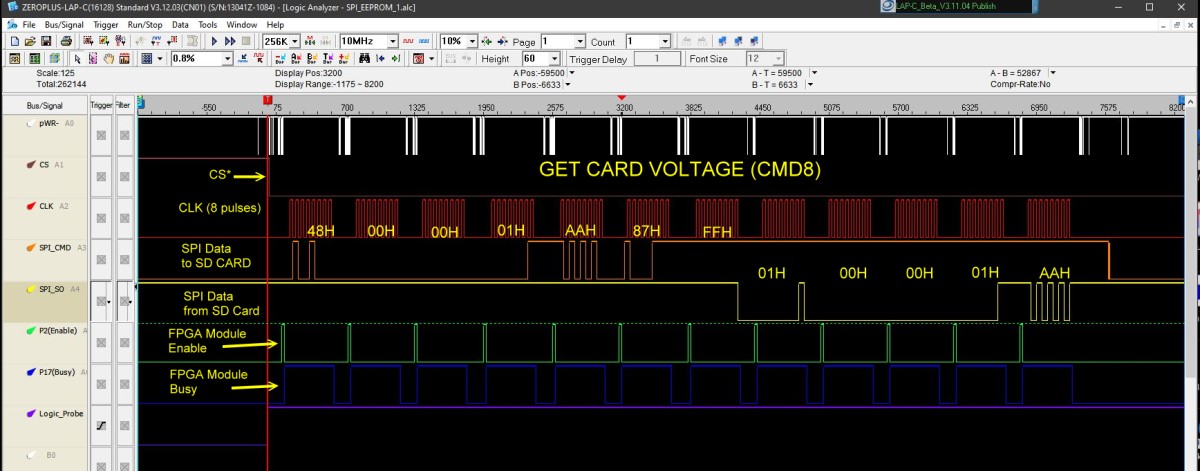
Here is an example picture of the main SPI signals using the
CMD8 command:
I have written a small 80486 module to initialize, read and write sectors to
the A,B and C SD drives in the ROOM BIOS. The program allows you to test the SD Cards interface.
Here is a picture of the main menu:-
Please note this is not a "bullet proof" menu. Little command error
checking etc. is done. The sector numbering is only
0-FFFFH, but that
should be enough for most needs. In fact some older
Type 2 cards may
not accept a sector number this large.
Note. These SD cards can read and write multiple sectors with a single SPI command. I
have not added this feature yet.
Also keep in mind
the SD cards LED D6
will only light up if a SD card is
not inserted in the Adfruit Micro SD adaptor (P18).
It is not connected to
P17.
Please examine the
80286_FPGA.bdf file to further understand the SD card interface on
this board.
Also spend some time studying the 80486 monitor code.
All the critical routines:
Initialize,
Read Sector,
Write Sector
etc. are written as self-contained returnable calls which should make it
easier to incorporate them as a MSDOS BIOS etc.
The source is in .A86 format
for use with NASM.
This program is transplanted almost unchanged into our FPGA-80286 ROM monitor and
is brought up with the 'H' command in the main menu:-
You therefore can have 2 different SD card drives running on this board.
You can change the monitor drive equates and the FPGA.bdf module to switch
them around (bits 0 and 1 of the
SDC_SC_STATUS
port).
You can also of course boot MSDOS (Monitor 'P' Command ) from your S100 bus
.
Currently I have not modified the FPGA ROM monitor to load MSDOS from the SD
cards (for the IDE/CF card board it is already done). Volunteers needed -- everything
in hardware is there!
One final note, a useful PC program to see/check what is written on any
sector of an SD Card is HxD Hex Editor.
It can be downloaded from here.
Burning FPGA Code to Flash RAM
Up until now whenever we programmed our FPGA via the JTAG
socket the data is lost whenever the power is turned off. While
fine for code development etc. it is not desirable for a final board
configuration. Like most FPGA applications the "final" code is saved
in Flash RAM and immediately loaded by the FPGA each time upon power-up.
This is a standard and common characteristic of most FPGA's. Some older
models in fact had a ROM onboard. Our Cyclone IV Adaptor
board has 16MB of Flash RAM on board for this purpose -- way more than we
are ever going to need!
The tricky part is programming this Flash RAM. I found the
Intel documentation poor and confusing. Here is a summary of the process:
Within Quartus you need to "convert" your normal JTAG FPGA
.sof
programming file
to a special file
.jic
to program the Serial Flash RAM chip on the Weveshare
board.
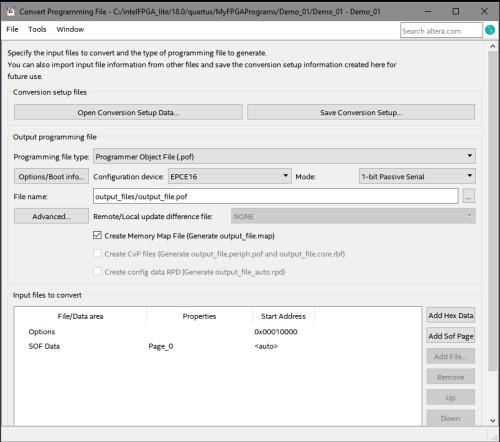
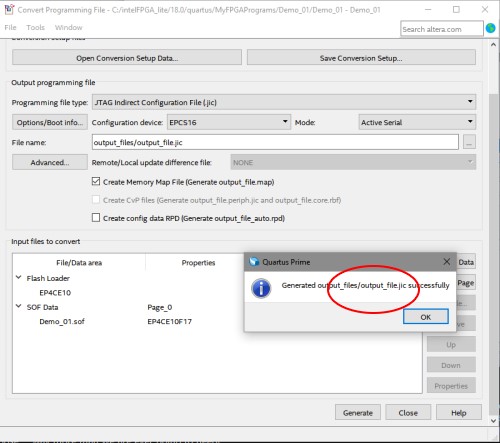
Within Quartus, click on the File Menu and select "Convert Programming files".
The dialog box below will popup.
From the dropdown box on the "Programming
File Type" select a
.jic
file type.
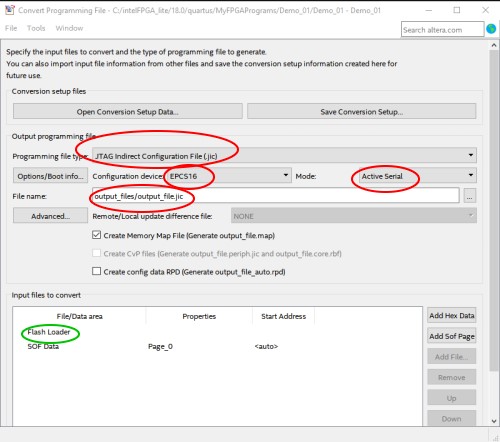
This is the file format that is required to program the onboard serial Flash
RAM.
For the
Options/Boot
info select
EPCS16.
Leave
Active Serial as is.
You can name the
.jic output file anything you like. I usually just leave it
output_file.jic. Note it will be in the Quartus generated "output_files"
folder within your work directory.
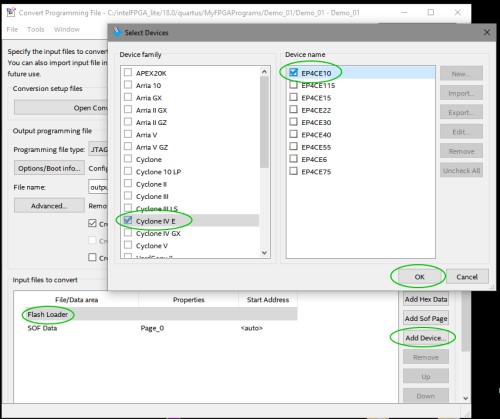
Next click on
Flash loaderwithin the lower "Input Files to
Convert", then click on the highlighted "Add Device"
button.
You will get a popup dialog box as shown below.
Select
Cyclone IV
and
EP4CE10.Note
Quartus takes some time to allow you to actually select
these options -- seems to be doing things in the background!
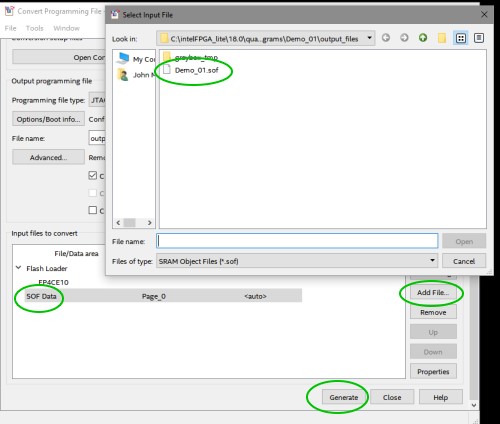
Next click on "SOF Data"
and "Add File".
You should see your "normal" FPGA program
.sof
file in your "output_files"
folder within your work directory.
Finally click the "Generate"
button.
You should get a popup dialog saying "Generated
output_file.jic
successfully.
Note the name and location of the converted file. Then close that dialog
box. See the pictures below.
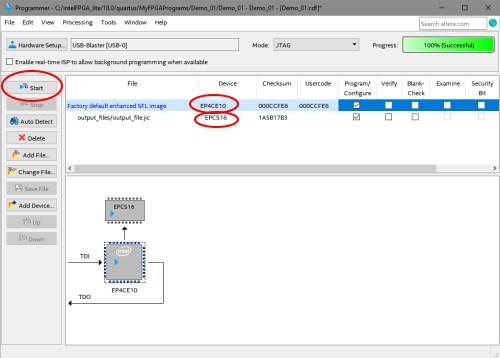
Next we need to actually flash the Waveshare boards RAM chip.
Click on the normal "Program Device (Open Programmer)" you normally use. If
its not already open, give it time to come up as a dialog box.
Make sure your board has power. To be safe click the Auto Detect
button. your normal xxx.sof
file should display with the device set as EP4CE10F17.
First delete the above line xxx.sof | EP4CE10F17
etc.
Click on Add File
and select the xxx.jic
file you just generated above.
Click on the Program/Configure little square character boxes.
The chip diagram below should show only 2 chips as shown. If more right
click on any 'extra' one and delete it. The dialog box must look as shown
below.
The Start button should highlight.
Click on this and you will flash the RAM chip. Follow the Progress bar
until it is done -- it takes about 1 minute.
You can power off and re-power your computer.
Your FPGA board should (after reset), start with whatever FPGA code is
within the chip.
Note when you close the above dialog box, normally you do NOT save the
changes.
Typically you want the chip to be quickly reprogrammable.
Jumpers
The board has a few jumpers that may not be obvious. K6 and K7. These
jumpers are normally 2-3. If you want the board to be an S100 bus
master they would be 1-2. However the Quartus.brd file will need to be
modified as well.
The position 1 of K6 and K7 by default are connected to the FPGA Delay_1 and
Delay_2 signals within the FPGA code to manage the pWR* signal delay
(see above).
Pin1 in each case it there to attach a logic analyzer. JP1
Some S100 bus systems provide the 2mHz clock signal (Pin49) from the front
panel. JP2
Some S100 bus systems generate the MWRT signal (pin 68) from the front
panel. If your board does this then don't jumper JP2. JP4
Pin R17 on a 80486 CPU is used to control the internal core speed of the DX4
processor. The CLKMUL (Clock Multiplier) signal at pin R-17 is sampled only
during a reset
of the CPU and defines the ratio of the internal clock to the external bus
frequency CLK signal at pin C-3. We will jumper JP4 K2
Pin A15 on a 80486 (IGNNE) when grounded causes the CPU to ignore
floating-point errors. Jumper it 1-2. K1 and K3
These jumpers are normally set 2-3. For a S100 bus master
configuration of the board they should be 1-2. However the FPGA code also
needs to be modified. P3
This is a spare pin from the Waveshare FPGA to allow you to
examine any internal signal. JP5
This jumper is NOT normally
connected.
The following board jumpers can be used to analyze some
critical signals with a logic analyzer:- P2 Delay 1 signal for pWR* P11
Delay 2 signal for pWR* P12
FPGA_pWR* P19
FPGA_pDBIN P20
CPU_CLK P23
FPGA_sMEMR P25
FPGA_MWRT P21
FPGA_sINP P22
FPGA_sOUT P26
CPU_MIO* P27
CPU_WR* P28
CPU_DC*
Notes
No hardware changes have been noted to date. The pictures of the board on
this page is actually that of the final prototype board. The actual
"production" board has some very minor changes -- mostly silk screen text
changes. However. Over time there may be corrections/additions to the 80486 monitor or FPGA
.bdf files. Always check below and use the most recent versions.
John Luke pointed out that according to
https://www.waveshare.com/w/upload/c/c8/CoreEP4CE10-Schematic.pdf pins 1
and 2 are 3.3V outputs from the onboard AMS-1117 regulator and that may be a
conflict with this output and the boards own 3.3V regulator. A valid
point, however I have not had a problem with this on any of our FPGA
driven boards. The AMS-1117 is only capable of 1 AMP current which may not
be enough to these boards.
Parts
It is
critical you use a
3V
80486 CPU. These chips run at 3.3V (+/- 0.3V). Intel chips
which require 5V will not run correctly on this board.
Fortunately these chips are fairly common on ebay.
Also at the clock speeds we are using here (25 mHz) there is no need for a
CPU heat sink. The chip does not even get very warm.
There appears to be a few variations of
the
74LVC245
20 pin DIP level Shifters chips with "A", "AN" etc. after the
245. As best I can tell so long as they are 20 pin DIPs they are
all OK. I use Mouser chips # 595-SN74LVC245AN.
The WaveShare Cyclone IV adaptor can be obtained directly from
Waveshare.
You also might want to get the
USB Blaster/Programmer from them.
The WaveShare unit uses unusual
2mm dual row pin connectors. See the write-up above. The best sockets are
the Digi-Key #1212-1786-ND 100 pin sockets (carefully clipped to
size).
The USB serial Adaptor is from
Sparkfun
F1231x. The Micro SD Card adaptors are from
Adafruit
and
Sparkfun
Please note the sockets
for the WaveShare adaptor are quite tricky to fit on to the board. I
found the best way to do it is (after trimming to size), push them half way
on to the adaptor pins and then wiggle them to fit the whole unit on to the
S100 board. Figure on spending 10 minutes on this step!
Do not solder them to the board first and then try and press the adaptor
down on them. They are very fragile and internally the leaves will
bend if socket angles are not exactly correct. When in place, check
each pin is visible on the back of the board before soldering. Only
then solder all around. Add as little solder to each pin as possible -
the narrow pins have a tendency to wick up solder internally.
To remove the adaptor, leaver each
corner up a little going round and round. The first time its quite difficult
to get the adaptor out. It gets easier with time.
Installing Quartus Lite on Windows.
In spite of its name the
Quartus Lite IDE is a
large program. When fully installed the Quartus folder is over 15GB in
size. Installing it makes Microsoft's Visual Studio seem lightening
fast!
That said, its an excellent IDE. Figure on 1 hour to install and
get it right. For our purposes we will only be using probably 5% of
its capabilities, but I have found if you try and get smart by not
downloading or removing sections you run into problems later during usage.
Please see
here for instructions on how to install Quartus.
Note to add slaves to the system with the FPGA_80486 SBC you will have to
modify the
FPGA486.bdf file further.
Its very important not to get the Quartus/FPGA files mixed up with those for those
described above.
They
should
all reside in a directory such as:-
A Production S-100 Board Realizing that a number of people might want to utilize a
board like this together with a "group purchases" by
people on the
Google
Groups S100Computers Forum will soon be opened. Come here for more details.
FPGA_80486_Monitor.zip V2.81 This .zip file contains the
FPGA_486 monitor BIOS source and .BIN files to work with the FPGA_VGA
Board ( V2.8 8/302024)
FPGA_80486_Monitor V2.81 (Text File) This text file contains
the FPGA_486 monitor BIOS source to work with the FPGA_VGA Board
( V2.8 8/302024)
Other pages describing my S-100
hardware and software.
Please click
here
to continue...